Documentation
How Gjallarhorn works on a Mac, and how to deploy it to managed ones.
Overview
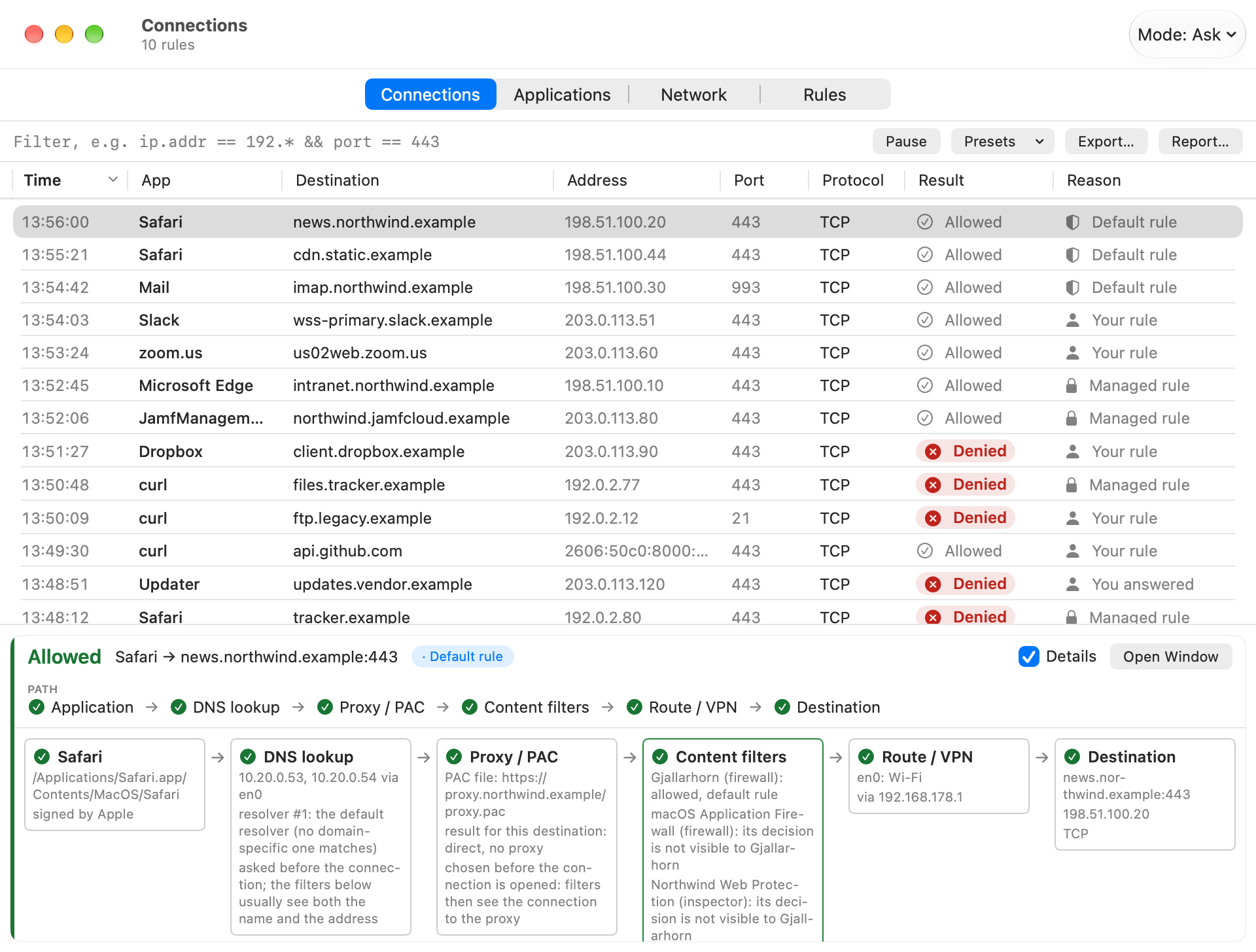
Gjallarhorn is a content-filter system extension plus a menu bar app. It shows every connection, can ask before new ones, blocks what you deny, explains the path a connection takes (app, DNS, proxy and PAC, content filters, route or VPN, destination) and exports rule sets for Jamf Pro or Intune. It has no AI and no telemetry; rules, history and recordings stay on the Mac, and the connection history is visible to administrators only.
Tested so far: version 0.1.0 is signed, notarized and unit-tested (179 tests). It has run with demo data and for a day on one MDM-managed work Mac (Jamf schema, package deployment, managed rules and modes). Hidden mode, helpdesk unlock, the audit log and recording under a profile have not yet been tested on a managed Mac. Never use ask mode with a deny fallback on a Mac you depend on.
Requirements
- macOS 26 or later, Apple silicon
- Approval of the network extension on first start, unless the deployment profile is installed first (needs a user-approved MDM enrolment or supervision)
Installation
Download Gjallarhorn-0.1.0.pkg (2.8 MB) and open it. It installs /Applications/Gjallarhorn.app. The package is signed (Developer ID) and notarized.
shasum -a 256 Gjallarhorn-0.1.0.pkg
# e87618a329b465250352b05701732bc9b4553e4b1ac22eb73788df99a0ae0e08
spctl --assess --type install -v Gjallarhorn-0.1.0.pkg   # → Notarized Developer ID
The installer is self-contained. The Jamf Pro schema, the example and deployment profiles, the helpdesk tool, the policy test, evidence and uninstall scripts and this guide are installed with the app, in /Applications/Gjallarhorn.app/Contents/Resources/Admin/. Print the path with --cli admin, or choose Show Admin Files in the menu bar item. File names below are relative to that folder.
First Steps
- Install the pkg and open Gjallarhorn. It starts in monitor-only mode: nothing is blocked.
- Look at Connections, Applications and Network. Use Rules ▸ Preview to see what a rule set would have done.
- Roll out profiles in monitor mode first.
Deployment
Gjallarhorn is configured with a configuration profile (Jamf Pro: Application & Custom Settings, Intune: custom preference payload), preference domain com.spectrechen.gjallarhorn. The network extension reads the profile itself (/Library/Managed Preferences/com.spectrechen.gjallarhorn.plist, re-read every 5 seconds), so enforcement never depends on the app being open or visible.
- The pkg: deploy the notarized installer with a Jamf policy or Intune. The app starts the first time someone logs in and installs or upgrades its extension by itself.
- The deployment profile
Jamf/deployment-gjallarhorn.mobileconfig: a system extension policy that allows the extension without user approval and marks it non-removable from the UI, plus a content filter payload that switches the filter on. Deploy it before or together with the pkg. - The settings profile: upload
Jamf/gjallarhorn-schema.jsonto Jamf Pro (Computers › Configuration Profiles › Application & Custom Settings › Upload, domaincom.spectrechen.gjallarhorn) or start fromJamf/example-allowlist.mobileconfig. Roll out inmonitormode first. - Keep the profiles non-removable and the app and profiles in the same scope.
Status per Mac: /Applications/Gjallarhorn.app/Contents/MacOS/Gjallarhorn --cli info, run as root from an extension attribute or by the helpdesk in a remote session. After upgrades the system lists older extension versions as "waiting to uninstall on reboot"; a restart cleans them up.
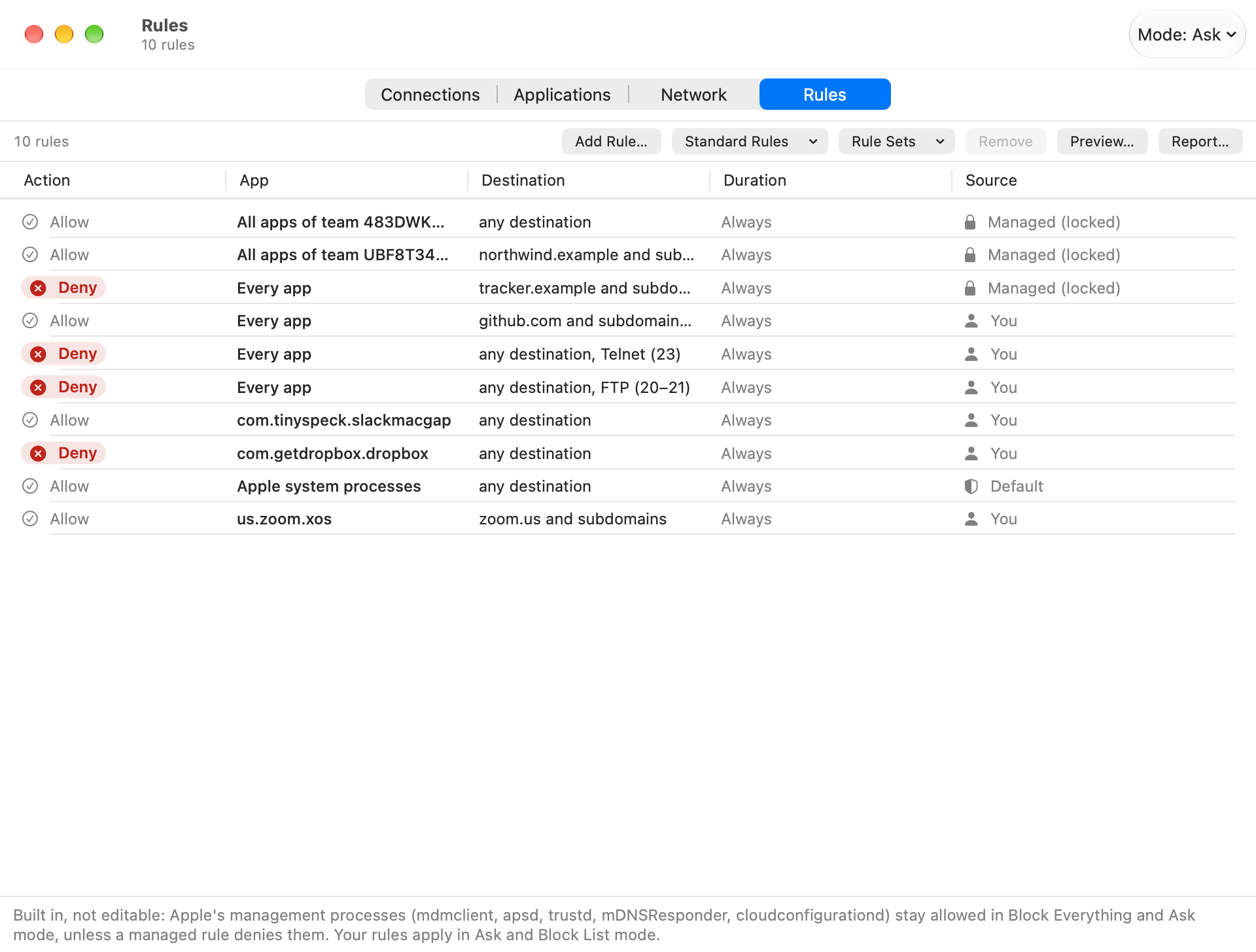
Allowlist example (only Jamf, Intune, Edge and Safari may connect): StartMode: block and ManagedRules for team 483DWKW443 (Jamf), team UBF8T346G9 (Microsoft), the Safari identifiers, software update, DNS and the local network. For compliance, scope a second profile with a stricter rule set to a smart group of non-compliant Macs; the extension applies it within seconds.
Tested on one MDM-managed Mac: the Jamf schema, package deployment, managed rules and modes. Not yet tested there: hidden mode, helpdesk unlock, the audit log and recording under a profile (run on an unmanaged Mac).
Profile Keys
| Key | Type | Meaning |
|---|---|---|
ManagedRules | Array of dicts | Rules that always win and cannot be changed on the Mac. See below. |
StartMode | String | monitor, ask, blocklist, allow, block. Forces the mode; the user cannot change it. block = only managed allow rules connect. blocklist = everything is allowed except what a Deny rule matches (a narrower Allow rule is an exception): the mode for protocol rules such as "no IPv6", "no FTP" or "no Telnet". |
EndUserVisibility | Bool | true shows the app, false hides it. Not set: see Visibility. |
PromptTimeoutSeconds | Int | How long a prompt waits. |
PromptFallback | String | allow or deny: the answer when nobody answers, and when the app is hidden and a connection matches no rule. |
HistoryRetentionDays | Int | How long connections are kept. |
ManagementLifeline | Bool | Default true: five Apple management processes stay allowed in block mode. false removes that safety net. |
AllowCapture | Bool | Default false under a profile (without a profile an administrator may record). true lets an administrator at the Mac record one app's next connections (max 30 minutes, max 50 MB, 5 MB by default). Start and stop are in the audit log. |
LogDecisions | String | off (default), denied or all: one unified-log line per decision. Profile applied or removed, unlock events and refused changes are always logged. |
LogDestinations | Bool | Default false: destinations in log lines are private. true writes them in the clear. |
BlockMessage | String | Optional. If set, the user gets a macOS notification with this text when the policy blocks a connection, naming the app and destination. Not set: the app stays silent. |
BlockMessageIntervalMinutes | Int | At most one notification per this many minutes (default 15); it says how many connections were blocked in between. |
UnlockPublicKeys | Array of dicts | Helpdesk keys, one per technician: Key (base64 Ed25519 public key), Name, NotAfter (date; measured on the Mac's clock, which a local administrator can set back: to really revoke a key, remove it from the profile). Without a valid key unlock is not possible. A single UnlockPublicKey string is still read. |
UnlockMaxMinutes | Int | Longest unlock a code can give (default 480). |
ManagedRules entries
Action (allow / deny), AppType (apple, any, team, identifier, path; default identifier), AppValue (team ID, bundle or signing identifier, or path), AppTeam (optional, pins an identifier to a developer), DestinationType (anything, domain, host, network), DestinationValue, Port (with PortTo for a range, e.g. FTP 20 and 21; the text 8000-8100 also works), IPVersion (4 or 6), Protocol (tcp / udp), Note. Entries that cannot be read are skipped; the info command lists them.
Visibility
| Policy | EndUserVisibility | App |
|---|---|---|
| none (unmanaged Mac) | not set | visible: menu bar, windows, prompts |
rules or StartMode: block | not set | hidden: no menu bar item, no windows, no prompts |
rules or StartMode: block | true | visible |
| any | false | hidden |
only settings such as PromptTimeoutSeconds | not set | visible |
While the app is hidden, connections that match no rule get PromptFallback (default deny) without a question, and the app cannot change rules, policy or history.
Staying Manageable
A Mac in block mode must still be able to receive its next profile. That needs Apple's push service (apsd, *.push.apple.com:5223), the MDM client (mdmclient), certificate checks (trustd) and name resolution (mDNSResponder). Gjallarhorn therefore always allows these processes plus cloudconfigurationd, the management lifeline, identified by Apple's signature, not by name. An explicit managed deny rule for one of them still wins, and ManagementLifeline: false switches it off.
The lifeline cannot know your third-party management agents. Allow them in the profile (Jamf team 483DWKW443, Microsoft/Intune team UBF8T346G9, your VPN and security tools).
Do not use "all Apple processes" in an allowlist: curl, ssh, nc and python3 are Apple-signed too. Allow the Apple apps you need by identifier.
Swapping or removing a profile is safe: while it is gone the Mac returns to the user's own mode, and a new profile applies within 5 seconds. Before a block profile: run it in monitor mode on a test Mac and read Connections with the filter denied, then check --cli info and the extension attribute on a pilot group.
The boot gap
Until macOS has started the network extension after a restart, the Mac is not filtered. That is the operating system's start-up order. Gjallarhorn applies the profile before it judges its first connection and reports it: --cli info shows "Filter started: N s after boot". If a Mac must never connect before the filter runs, that needs another layer, for example a VPN with "include all networks".
Helpdesk Unlock
Break glass for a Mac locked out of the network, on a live call. Every technician has their own key pair, so one leaked or departed key is removed from the profile without touching the others.
- Once per technician:
Tools/gjallarhorn-unlock keygen alice.key --name alice --valid-days 90and add the printed entry toUnlockPublicKeys. The private key stays with the technician. - On the Mac:
/Applications/Gjallarhorn.app/Contents/MacOS/Gjallarhorn --cli unlock-challengeprints a request code, valid for 5 minutes. - Technician:
Tools/gjallarhorn-unlock issue alice.key <request code> 30(add--uito show the app on that Mac) and sends the code (GJ1.…) back. - On the Mac:
… --cli unlock <code>. The network is unrestricted for the minutes in the code, at mostUnlockMaxMinutes.--cli unlock-endends it early.
The Mac holds only public keys, so nothing on it can make a code. A code is signed over that Mac's own one-time request code, so it works only there and only once. Durations are measured on a clock that ignores date changes and runs through sleep; an unlock ends at a reboot.
Connection Filter
The field above the Connections list takes a filter expression (press ⌘F, or click the ? next to it for the list of fields; a click on an example puts it into the field). A bare word searches app, host and address. Combine conditions with &&, ||, ! (or and, or, not) and parentheses. Operators: == != < <= > >= contains matches (regular expression) in {a b c}; * and ? are wildcards in ==.
| Field | Matches | Example |
|---|---|---|
app | App name; also app.id, app.team, app.path | app == "Safari" |
host | The name the app asked for | host contains apple.com |
ip.addr | Destination address; wildcards and CIDR | ip.addr == 10.0.0.0/8 |
port | Destination port; also tcp.port, udp.port | port in {80 443} |
proto | Transport: tcp or udp | proto == udp |
result | allow or deny | result == deny |
reason | Why: rule, mode, answer, timeout, … | reason == mode |
pid | Process ID | pid == 4242 |
age | How long ago: 30s, 5m, 2h, 1d | age < 5m |
denied, allowed | Flags: only denied or only allowed connections | denied |
app.apple, ip.private, ip.v6 | Flags: Apple-signed app, local network, IPv6 | !app.apple && !ip.private |
The Presets menu has ready-made filters, among them proto == tcp and proto == udp. Live keeps the list updating while a row is selected or you scroll; switch it off to hold the list still while you read, and new connections wait behind the newer — Show button. Pause holds the list until you resume. The same expressions work in --cli and in Rules ▸ Preview.
Recording
An administrator at the Mac can record what one app sends and receives: Connections ▸ right-click ▸ Record Next Connections, or --cli capture <bundle-id|/path> [host], then capture-stop and capture-save <file.pcapng>.
- Only connections opened after the recording starts are recorded.
- 5 minutes and 5 MB by default, at most 30 minutes and 50 MB; one recording at a time.
- The payload is real. The Ethernet, IP and TCP/UDP headers are synthetic and the file says so. TLS stays encrypted; plaintext protocols can contain passwords, so treat the file as confidential.
- Administrators only. Under a profile it is off unless
AllowCaptureistrue. It cannot be started remotely.
Testing a Destination
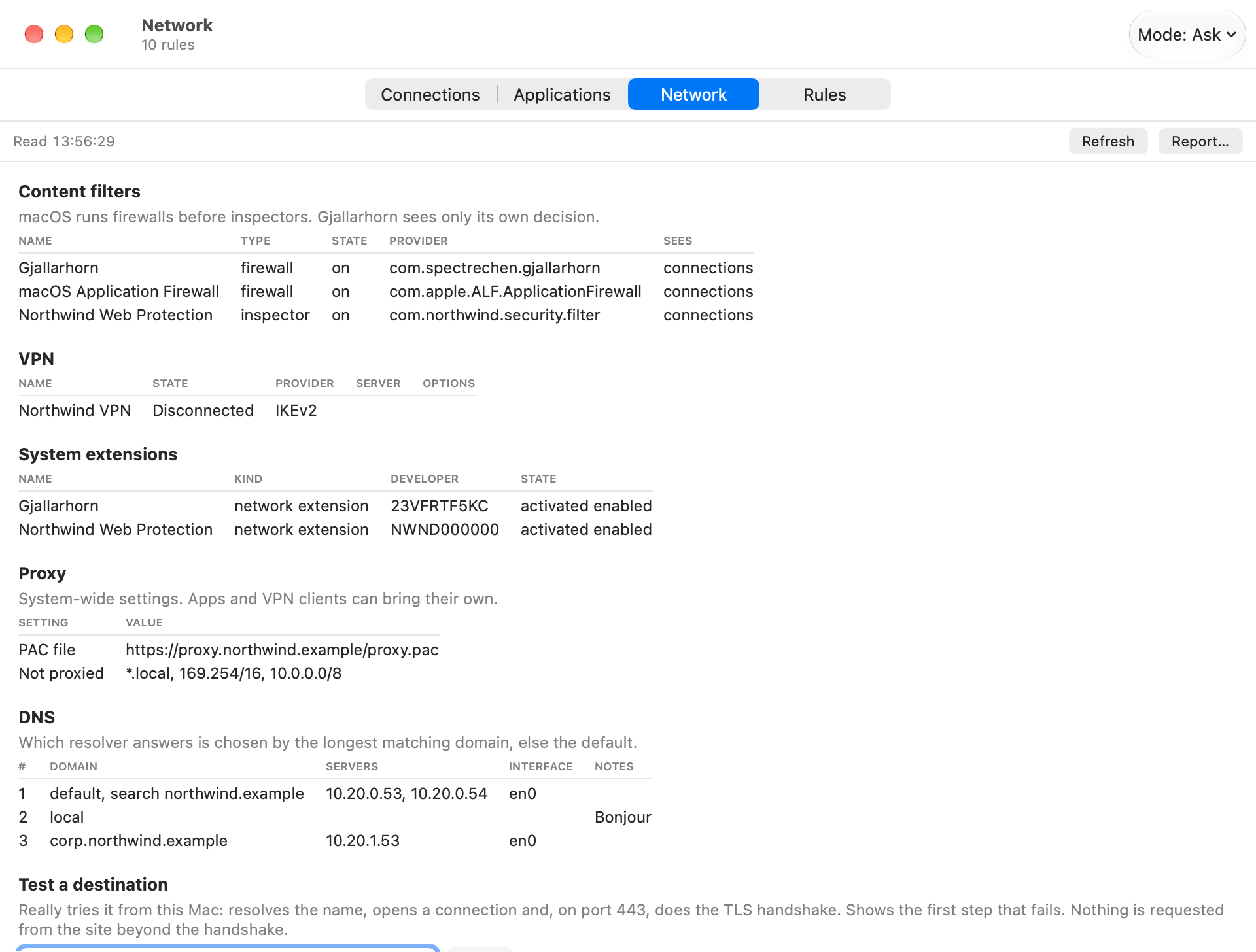
Network tab ▸ Test a destination, or --cli test <host> [port]: resolves the name like an app would, opens a connection, does the TLS handshake on port 443 and adds what Gjallarhorn did with the latest connection to that host. The summary names the first step that fails and says when the filter itself denied it.
Command Line
/Applications/Gjallarhorn.app/Contents/MacOS/Gjallarhorn --cli <command>; without a command it lists them: info, status, rules, history, mode, policy, managed, add-rule, remove-rule, network, path [host], test <host> [port], tls, simulate <file>, report <file.pdf>, capture, capture-stop, capture-status, capture-save, unlock-challenge, unlock, unlock-end, filter, sysext.
Unified Log
The filter writes to subsystem com.spectrechen.gjallarhorn.filter, category audit:
sudo log show --last 1d --predicate 'subsystem == "com.spectrechen.gjallarhorn.filter" AND category == "audit"'Always logged: profile applied or removed, unlock codes issued, granted, refused, expired or ended, changes refused because of the profile, an unreadable profile file. Decisions only with LogDecisions. Destinations are private unless LogDestinations is true.
Uninstalling
Scripts/uninstall.sh (run with sudo) removes the system extension through the app, then the app. macOS asks the user to approve the removal unless the deployment profile allows it; with the profile marking the extension non-removable, remove the profile first. --keep-data leaves /Library/Application Support/Gjallarhorn (rules, history, recordings); without it the folder is deleted.
What's Verified
- 179 unit tests pass; every window and tab opens without a crash (smoke test).
- Tested with demo data and for a day on one MDM-managed work Mac, not at scale.
- On that managed Mac: the Jamf schema, package deployment, managed rules and modes work. Hidden mode, helpdesk unlock, the audit log and recording under a profile were run on an unmanaged Mac only.
- The order of the path stages is unverified against several other content filters.
Terms and third-party notices: License.