Documentation
How Gimle backs up Jamf Pro, and the format it writes.
Overview
Gimle makes read-only, deduplicated backups of one or more Jamf Pro servers onto a folder you choose. It runs as a normal app (not a daemon): scheduled backups start while Gimle is running, and a missed start fires at the next launch.
The backups are meant as an offline data source for Janus and Jarl. Restore is out of scope.
Tested in a demo environment only: version 0.4.0 is signed, notarized and unit-tested (77 tests in 17 suites). It has not been run against a production Jamf Pro, so some endpoint names, response fields and privilege names below may still change once they've been confirmed against a production tenant. The explorer, reports and simulation were exercised with demo data, encryption hasn't been tried with a real organisation key profile, and view-only mode (AllowBackups) hasn't been checked by eye. The project log doesn't record a 0.4.0 install on a test Mac. Start with a test instance; missing privileges or endpoints show up as warnings, not failures.
Requirements
- macOS 27 or later, Apple Silicon
- A Jamf Pro API client with a read-only role
- Enough disk space for the backup folder — package binaries are downloaded by default
Installation
Download Gimle-0.4.0.pkg and open it — it installs /Applications/Gimle.app, plus the docs, example profiles and tools and the gimlectl command (see Installed Files), so deploying only the pkg is enough. The package is signed (Developer ID) and notarized.
shasum -a 256 Gimle-0.4.0.pkg
# 8c02a6aeda3935e9b370387314d1b3a1c972014d0924337799cd1b920dd02531
spctl --assess --type install -v Gimle-0.4.0.pkg   # → Notarized Developer ID
For managed deployment, download the full Gimle-0.4.0 distribution bundle (14.8 MB): the pkg plus the admin guide, API role and backup format docs, example profiles (a plist and the Jamf Pro custom schema), and the tools — gimlectl, encrypt.html, make-org-key.sh and make-key-profile.sh.
About gimlectl in the zip: the loose copy in the bundle's Tools/ folder has the same code signature as the notarized copy inside the pkg, but no notarization ticket can be stapled to a bare command-line binary, and a quarantined download of it hasn't been tested. If macOS blocks it, install the pkg instead — it puts gimlectl at /usr/local/bin/gimlectl.
Read-Only API Role
Gimle only sends GET requests. Give it an API client whose role holds Read privileges only. A missing privilege doesn't stop a backup: that section is recorded as notPermitted and the backup completes with warnings, so you can start small.
- Settings → System → API roles and clients → API Roles → New — e.g.
Gimle (read-only). - API Clients → New — name
Gimle, that role, token lifetime e.g. 30 min (Gimle renews 60 s before expiry). Enable it. - Generate client secret and copy the client ID and secret once.
Recommended minimum: Read Computers, Mobile Devices, Users; macOS and iOS Configuration Profiles; Computer, Mobile Device and User Extension Attributes; Scripts; Policies; Smart and Static Computer, Mobile Device and User Groups; Packages; Distribution Points; Cloud Distribution Point; Jamf Content Distribution Server Files.
For a complete backup, add Read privileges for sites, buildings, departments, categories, PreStages and enrollment, apps and VPP, patch management, blueprints, advanced searches, and the remaining settings areas. The manifest of the first backup lists the privileges the client really has, and every notPermitted section names the privilege it needs.
Single Mac Setup
- Install Gimle-0.4.0.pkg (installs
/Applications/Gimle.app). - Add Instance… — name, server URL, client ID and secret. Test Connection checks the credentials and shows the Jamf Pro version. The secret goes to the login keychain.
- Settings → General — backup folder (default
~/Library/Application Support/Gimle/Backups) and retention. - Back Up Now, or schedule a start in the instance view.
Managed Settings
Preferences domain: com.spectrechen.gimle. A Jamf Pro custom schema and an example plist ship with Gimle. Keys that are set are locked in the app; keys you leave out stay editable.
| Key | Type | Default | Meaning |
|---|---|---|---|
ManagedInstances | array | — | Instances pushed by MDM (Name, URL, ClientID, ClientSecret, optional FileShareMountPath). Shown read-only. |
AllowUserInstances | bool | true | false hides Add Instance… |
AllowBackups | bool | true | false makes Gimle view-only on this Mac: users can explore backups and open their reports, but not back up, simulate, schedule or delete backups (scheduled starts are skipped). MDM only — there is no switch in the app |
MinimumHoursBetweenBackups | int | 0 | Minimum hours between two backups of an instance, counted from the newest backup in the folder (any Mac). Set by MDM it is enforced, also for Back Up Now; set locally, Gimle asks before backing up earlier. Scheduled backups that come too early are skipped. 0 = no minimum |
BackupFolder | string | Application Support | Local path, external disk, mounted share or synced cloud folder; ~ is expanded |
EncryptBackups | bool | false | Encrypt new backups with the organisation key (see Backup Encryption). MDM only — the app explains why it can't be switched on locally |
EncryptionKeyID | string | (empty) | Organisation key to encrypt to when several are installed (default: all installed keys) |
CreateReports | bool | true | Write backup-report.pdf and security-report.pdf into every backup |
RetentionCount | int | 30 | Keep the newest N complete backups per instance (0 = no limit) |
RetentionDays | int | 0 | Delete backups older than N days (0 = never) |
DownloadFiles | bool | true | Download package binaries and DP files |
IncludeClassicDeviceRecords | bool | true | Also store each device's Classic API record |
MaxConcurrentRequests | int | 4 | Parallel API requests |
MaxRequestsPerSecond | real | 10 | Request start rate; 0 = unlimited |
MaxConcurrentDownloads | int | 2 | Parallel file downloads |
DisabledSections | array | none | Section IDs to skip |
The newest backup is always kept, whatever the retention settings say.
Encrypted Client Secrets
Anyone on a Mac can read managed preferences, so ClientSecret should be a GIMLE-ENC:v1 value, not the plain secret — Gimle warns about plaintext secrets. The construction is P-256 ECDH, HKDF-SHA256 and AES-256-GCM.
- Create an organisation key once on an admin Mac: a public certificate to share, a
.p12identity for MDM, and a private key you keep offline. - Deploy the key with Jamf's Certificate payload (tick Allow all apps access, leave Allow export off) or as a ready-made profile.
- Encrypt each client secret with
gimlectl encrypt --cert gimle-org.cert.pem, or with the included offlineencrypt.htmlpage. - Put the resulting
GIMLE-ENC:v1:<kid>:…value intoClientSecret.
Gimle decrypts the value only when it requests a token and never writes the plaintext to disk. Keys can be rotated side by side — the kid in each value selects the key.
make-org-key.sh runs under bash and sh as well as zsh since 0.2.1; the 0.2.0 copy stopped with “pass[@]: unbound variable” in macOS's bash 3.2.
Backup Encryption
With EncryptBackups = true, Gimle encrypts every new backup with a data key wrapped for your organisation key — the same P-256 key pair that decrypts GIMLE-ENC client secrets.
- Encrypted: all API objects (scripts, profiles, policies, inventory …), the section indexes (device, user and policy names), the progress journal and the PDF reports.
- Not encrypted: package binaries, and the backup summary (dates, counts, section status), so backup lists, retention and the minimum interval work everywhere.
instance.json,audit.jsonlandbackup.lockalso stay readable. - Every Mac that backs up or explores the backups needs the organisation key profile — view-only Macs too. Without it, Gimle shows the list but not the content, and a Mac that is supposed to encrypt refuses to back up.
- Keep
gimle-org.key.pemsafe (vault, password manager). If every copy of the organisation private key is lost, encrypted backups cannot be read by anyone. - The explorer and search decrypt each object only when shown or searched; nothing decrypted is written to disk. Reports open into a private temporary folder that is emptied when Gimle quits.
- Switching it on: earlier backups stay unencrypted until retention removes them and are marked Not encrypted. The first encrypted backup stores every object once more.
gimlectl … --key <org.key.pem>opens encrypted backups on a Mac without the key profile.
Not yet tried with a real organisation key profile — test on a test instance first, including a view-only Mac with and without the key.
gimlectl
Signed command-line helper, installed as /usr/local/bin/gimlectl (also in the distribution bundle's Tools/ folder).
gimlectl encrypt --cert <org.cert.pem> [secret]   Encrypt a client secret (stdin if omitted)
gimlectl key-info --cert <org.cert.pem>           Key ID and public key for encrypt.html
gimlectl keys                                     Organisation keys this user can use
gimlectl decrypt --key <org.key.pem> [value]      Test a key offline
gimlectl list <instance folder>                   Backups of one instance
gimlectl verify <instance folder> [backup ID]     Check every object and file of a backup
gimlectl gc <instance folder>                     Delete store content no backup references
gimlectl pack <instance folder>                   Move single object files into one pack file
gimlectl report <instance folder> [backup ID] [--out <dir>]
                                                  Create the backup and security PDF reports
(add --key <org.key.pem> to open encrypted backups without the key profile)
Installed Files
Besides /Applications/Gimle.app, the package installs:
/Library/Application Support/Gimle/Docs/       ADMIN-GUIDE.md, JAMF-API-ROLE.md, BACKUP-FORMAT.md, screenshots/
/Library/Application Support/Gimle/Profiles/   example profile and Jamf Pro custom schema
/Library/Application Support/Gimle/Tools/      gimlectl, encrypt.html, make-org-key.sh, make-key-profile.sh
/usr/local/bin/gimlectl                        link to Tools/gimlectl
In the app: Help › Admin Guide, Profiles and Tools.
How a Backup Runs
- Order: settings sections first, then computers and mobile devices, then package files.
- Delta: every backup is a full snapshot, but unchanged objects and files are stored once. A device whose inventory timestamp hasn't changed isn't requested again; a package whose Jamf hash is unchanged isn't downloaded again.
- Load on the server: requests are rate-limited; on HTTP 429/503 Gimle backs off (honouring
Retry-After) and retries transient errors. Backups can be paused and resumed. - Interruptions: a quit, crash or network loss leaves a
.partialbackup that the next run resumes. Partial downloads continue with HTTP Range. - Missing privileges or endpoints (HTTP 403/404) mark that section and let the backup continue.
- Package files come from the Jamf Cloud Distribution Service, unauthenticated HTTP(S) distribution points, or a locally mounted share. SMB/AFP shares need that mount.
Backup Explorer
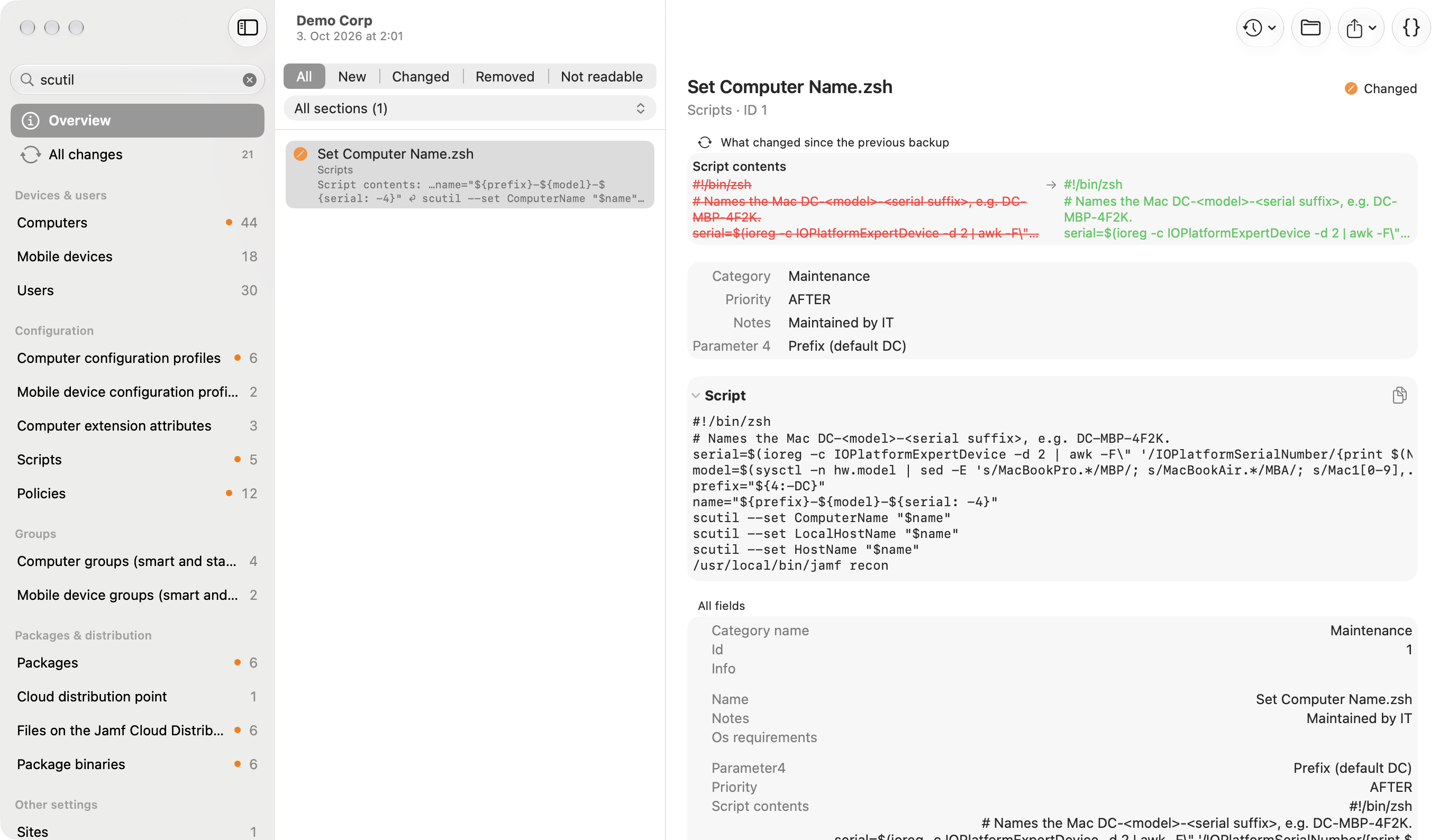
Explore opens a backup in its own window: sections on the left, objects in the middle, and the selected object in readable form — key facts (a policy's triggers, frequency, packages, scripts and scope; a profile's payloads; a group's criteria and members), script bodies, what changed since the previous backup, and every field as an outline. Search covers all sections, by names or by contents (it looks inside every stored field and shows the matching text); the filter bar stays pinned and can be narrowed to one section, also for “All changes”; the filter shows only new, changed, removed or unreadable objects; another backup can be picked from the toolbar. The raw JSON is one click away.
Export: per object as an unsigned .mobileconfig (profiles), an executable file (scripts and EA scripts), the package file from the backup, or JSON; Export All… saves a whole section into a folder. A package that isn't in the backup can be downloaded after a confirmation (it isn't added to the backup) — that needs the instance set up on this Mac and AllowBackups not switched off.
Reports
After every backup Gimle writes two PDFs next to the manifest (switch off with CreateReports):
- Backup report: status, duration, every section with counts, what needs attention (missing privileges, unreadable objects, package files that could not be fetched), and the changes since the previous backup — for settings objects field by field.
- Security report: who ran the backup on which Mac, where the secret came from, proof that every API request was a GET, the API client's privileges (write privileges are flagged), sensitive content in the backup, folder location and permissions, requests per endpoint and the complete action log (also in
audit.jsonl).
Older backups get their reports on demand (Backup Report / Security Report buttons, or gimlectl report).
Simulation
Simulate in the toolbar runs a check: Gimle reads Jamf Pro like a backup and compares it with the newest backup, but writes nothing into the backup folder and downloads no files. Devices whose inventory changed are counted, not read, so a simulation is much lighter than a backup. At the end a window shows whether a backup would succeed and what it would change; the simulation report and its security report are saved in ~/Library/Application Support/Gimle/Reports/<server>/.
Shared Backup Folders
Point several Macs at the same folder to share the work, e.g. ~/Library/CloudStorage/OneDrive-Contoso/Jamf Backups (OneDrive, SharePoint, a network share):
- Staging: in a synced or network folder Gimle stages the running backup on the Mac (
~/Library/Application Support/Gimle/Staging): new objects, the journal and partial package downloads stay local and are published in one step — objects first, then the backup's indexes, the manifest last. The sync client uploads each file once. New objects are written as one pack file per backup, and the first such backup packs the existing single files too; a folder with ~8,000 object files shrinks to a handful. Every Mac that uses the shared folder needs Gimle 0.3 or later. - With
EncryptBackups, deploy the organisation key profile to every Mac that uses the folder, including view-only ones. - Gimle lists the instances it finds in the folder under In the backup folder. Anyone can explore those backups and open their reports; Set Up Backups… adds the instance with the URL and client ID pre-filled, so only the client secret has to be entered.
- A best-effort
backup.lockfile keeps two Macs from backing up the same instance at the same time (a lock without a heartbeat for 15 minutes is taken over; after a crash on the same Mac, immediately). Abackup.lockthat remains after a 0.2.0 or 0.2.1 backup can be deleted. Sync services deliver files with a delay, so agree on who runs scheduled backups. - Set the folder to Always keep on this device: each backup compares with the previous one and reads its indexes; with online-only files that means downloading them first.
- Give colleagues who only need to look a profile with
AllowBackups = false: they point Gimle at the shared folder and explore, without an API client secret. - Use
MinimumHoursBetweenBackups(e.g.24or168) so the Macs together back up at the planned frequency instead of each one whenever it is started. - The folder holds scripts, inventory and personal data. Share it only with the people who run backups (see the security report).
Backup Format
The format (formatVersion 2 with packs, 3 when encrypted; 1 for backups made before Gimle 0.3) is a public contract for tools that read Gimle backups. Section IDs never get renamed; readers must ignore unknown keys and sections.
<BackupRoot>/<instance-slug>/
  instance.json                          which Jamf Pro server this folder belongs to
  store/objects/<aa>/<sha256>.json       fetched API objects, canonical JSON, deduplicated ("loose")
  store/packs/<name>.pack                (format 2) objects packed together
  store/packs/<name>.idx                 (format 2) where each object lives in its pack
  store/files/<aa>/<sha256>              package binaries / DP files, deduplicated
  backups/<backupID>/manifest.json       summary; present only in complete backups
  backups/<backupID>/sections/<id>.json  which objects belong to this backup, per section
  backups/<backupID>/audit.jsonl         every request, download and local action of the run
  backups/<backupID>/backup-report.pdf   human-readable backup report (optional)
  backups/<backupID>/security-report.pdf security report (optional)
  encryption.json                        (format 3) data key wrapped per organisation key
  backups/<backupID>.partial/            a running or interrupted backup, ignore
  backup.lock                            present while a Mac is backing up this instance
The audit log, the reports and backup.lock were added in 0.2.0 without a format version bump: they are additive, and readers that ignore unknown files are unaffected.
<instance-slug>is the lowercased server host;<backupID>is the UTC start time (e.g.2026-09-28T020000Z), so IDs sort chronologically.- To read a backup: pick the newest folder with a
manifest.json, read each section index, and resolve object hashes first instore/objects, otherwise through the pack indexes instore/packs/*.idx(readlengthbytes atoffset); files are instore/filesand never packed. Format 1 readers cannot read packed objects. - Encrypted backups (format 3): the manifest carries
"encryption": { "scheme": "GIMLE-AEAD-v1", "keyIDs": […] }and each instance hasencryption.jsonwith the data key wrapped per organisation key. Sealed content starts with the 12-byte magicGIMLE-AEAD1\nfollowed by an AES-256-GCM box; object names are the HMAC-SHA256 of the plaintext; reports are*.pdf.enc. Plaintext and encrypted backups can sit side by side in one instance. - Objects are the raw API responses as canonical JSON (keys sorted), not typed models — nothing is lost.
instance.jsonnever contains secrets; its optionalclientID(since 0.2.0) is the API client ID, so a colleague opening a shared backup folder only has to enter the secret. - You never need an older backup to read a newer one.
audit.jsonl holds one JSON object per line, in the order things happened: time (ISO 8601), kind (request, download or local), method (GET for requests and downloads, COPY from a mounted share, a verb for local actions), target (API path, or host/path of a download with the query string removed so no presigned signatures are kept), status, outcome (ok, retry, notPermitted, notFound, failed, cancelled), and optional bytes, milliseconds, detail. A resumed backup appends to the same log. The token request (POST api/oauth/token) is not listed; it is the only non-GET call.
backup.lock is { "host", "user", "processID", "startedAt", "heartbeat", "gimleVersion" }, written by the Mac that is backing the instance up, refreshed every minute and deleted at the end. Another Gimle refuses to start a backup of the same instance while the heartbeat is younger than 15 minutes, unless the lock was written on the same Mac by a process that no longer runs (then it is taken over at once). Readers can ignore it.
What Gimle Doesn't Read
- Secrets Jamf never returns through the API (API client secrets, LDAP bind passwords, certificate private keys). Where the API masks a value, the backup holds the mask.
- LAPS passwords, FileVault recovery keys and other “view”-type privileges — leave those out of the role.
- Files on SMB/AFP-only distribution points unless the share is mounted locally; authenticated HTTP distribution points aren't supported.
Sensitive data: even read-only, a backup holds inventory (serials, users, e-mail addresses), scripts and settings. Store the backup folder like any other admin export — encrypted volume, limited access.