Documentation
How Lynceus reviews Jamf Pro content, and how to deploy it.
Overview
Lynceus reviews the content of a Jamf Pro instance for security problems: scripts, extension attributes, policy commands and parameters, configuration profiles and package scripts. It reads them live (GET requests only) or from a Gimle backup.
For every object a local AI model reviews the code first. Then 39 deterministic rules run, confirm or add findings, and check every AI finding against the actual code. Scans are kept per instance, so each run shows what's new and what's fixed, and triage decisions carry over.
Demo environment only: version 0.2.0 is signed, notarized and unit-tested (54 tests in 17 suites), but it has been tested in a demo environment only, not against a production Jamf Pro. AI findings come from a small model: Lynceus labels how each finding was verified, but read the code before acting on one.
Requirements
- macOS 27 or later, Apple Silicon
- About 2.7 GB of free memory for the bundled model (8 GB Macs work, but close other apps first)
- For live scans: a Jamf Pro API client with a read-only role. For offline scans: a Gimle backup
Installation
Download Lynceus-0.2.0.pkg (2.7 GB, most of it the bundled model) and open it. It installs /Applications/Lynceus.app. The package is signed (Developer ID) and notarized.
shasum -a 256 Lynceus-0.2.0.pkg
# abb886ed09b9372503c9cb4b83af1ac53eb44d2cf039edf47c07d9746b8bfe46
spctl --assess --type install -v Lynceus-0.2.0.pkg   # → Notarized Developer ID
The full Lynceus-0.2.0 distribution bundle (2.8 GB) contains the same pkg, its checksum, a README and the admin guide with screenshots.
What It Reads
| Object | Jamf Pro privilege (read) | What is checked |
|---|---|---|
| Scripts | Read Scripts | The full script and its parameter labels |
| Computer extension attributes (script type) | Read Computer Extension Attributes | Script, <result> output, side effects |
| Policies | Read Policies | Files & Processes command, script parameters $4–$11, local accounts |
| Computer and mobile device configuration profiles | Read macOS / iOS Configuration Profiles | Payload XML: secrets, Gatekeeper, firewall, PPPC, screen lock, root certificates |
| Package scripts | None (Gimle backups with package files only) | preinstall, postinstall and helper scripts |
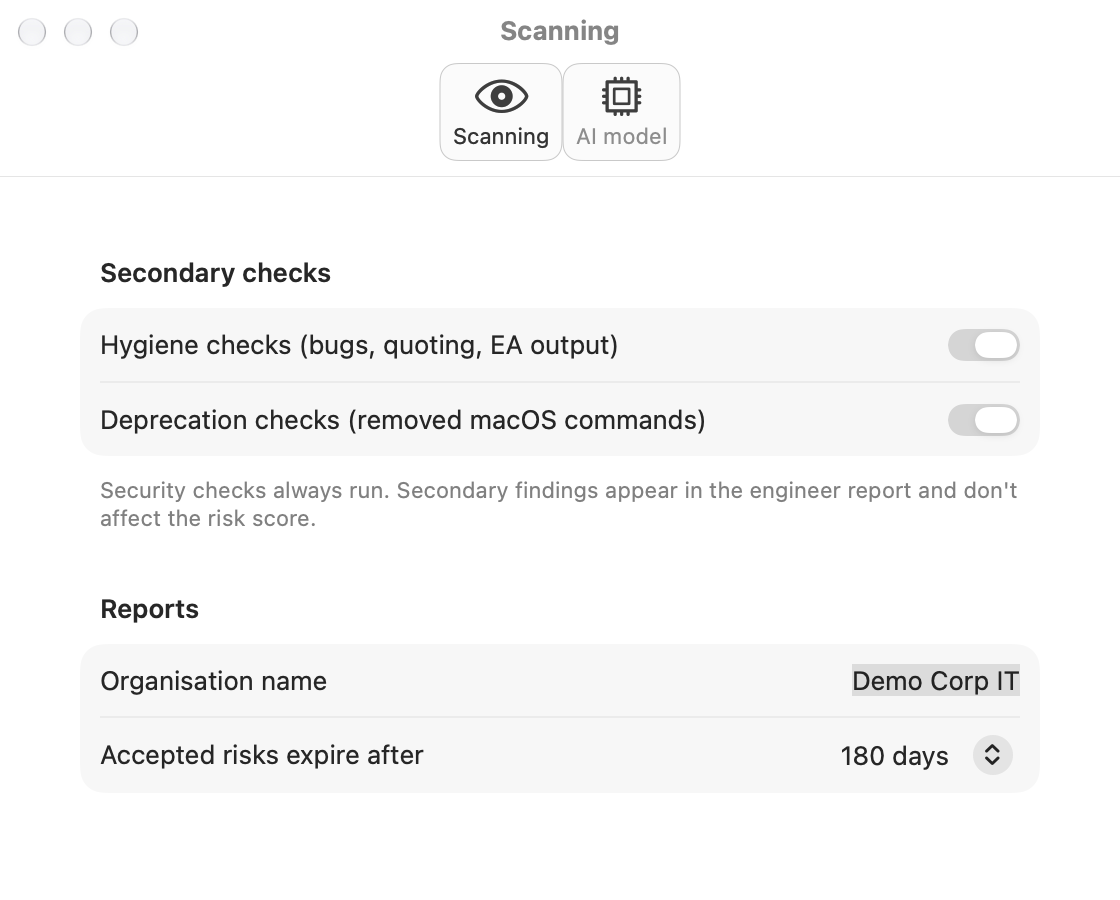
Python, AppleScript and shell are recognised. Hygiene checks (bugs, quoting, extension attribute output) and deprecation checks (removed macOS commands) run too, but they only appear in the engineer report and never change the risk score.
Read-Only API Role
Lynceus sends only GET requests, through Gimle's backup engine. Create an API role with exactly the read privileges above plus Read Packages, and an API client with that role. A missing privilege doesn't stop the scan: that section shows up as notPermitted in the security report's coverage table. That means no data, not "no findings".
Lynceus never downloads packages from Jamf Pro. Package scripts are read only from Gimle backups that already contain the package files.
Gimle Backups
Backups are found automatically in Gimle's backup folder (its BackupFolder setting or ~/Library/Application Support/Gimle/Backups). More folders can be added in the app or with BackupFolders. Encrypted backups need the organisation key in the keychain, as for Gimle itself.
A live scan writes a snapshot in Gimle's format first (the newest five are kept) and then scans that, so live and backup scans work the same way and share one history per instance.
Managed Preferences
Domain: com.spectrechen.lynceus. Keys set by MDM are locked in the app.
| Key | Type | Default | Meaning |
|---|---|---|---|
ManagedInstances | Array of dicts | — | Same format as Gimle: Name, URL, ClientID, ClientSecret (preferably a GIMLE-ENC:v1 envelope) |
AllowUserInstances | Bool | true | Users may add their own instances |
AllowLiveScans | Bool | true | false = only Gimle backups can be scanned |
BackupFolders | Array of strings | — | Extra folders with Gimle backups |
UseAI | Bool | true | false = rules only, no model is loaded |
LLMBackend | String | mlx | mlx (on the Mac) or openAICompatible |
MLXModel | String | bundled | Model folder name, e.g. gemma-4-e2b-it-4bit |
OpenAIBaseURL, OpenAIModel | String | — | For openAICompatible, see AI Options |
OpenAIAPIKey | String | — | Sent as Authorization: Bearer. Preferably a GIMLE-ENC:v1 envelope, decrypted with the organisation key. Without it, users can store their own key in the login keychain |
OpenAIDisableThinking | Bool | true | Asks reasoning models not to think first and caps answers at 900 tokens |
OpenAIExtraParameters | String | — | JSON object merged into every request, e.g. {"reasoning_effort": "low"} |
ScanHygiene, ScanDeprecation | Bool | true | Secondary checks |
ReportOrganization | String | — | Shown in report headers and footers |
AcceptedRiskDays | Int | 180 | Accepted risks reopen after this many days (0 = never) |
RuleSettingsFile | String | — | Path to a rules JSON (exported from the Rules window) that every scan uses |
AllowRuleEditing | Bool | true | false = users can't change rules; only RuleSettingsFile applies |
Managed Preferences are plaintext. Put Jamf client secrets and API keys into profiles only as GIMLE-ENC:v1 envelopes. See Gimle's documentation for creating the organisation key and encrypting values.
AI Options
By default the bundled Gemma 4 E2B model (4-bit, Apache 2.0) runs on the Mac through MLX, and no content leaves the Mac. Unchanged objects come from a review cache and aren't sent to the model again.
If a larger model is worth it for your team, an administrator can point Lynceus at your own OpenAI-compatible server (LLMBackend = openAICompatible), for example an MLX or vLLM server on a Mac or in your data centre, or a company AI gateway. Secrets are masked before anything is sent to a server that isn't local, but the script content itself goes to that server, so use only a server your organisation controls and is allowed to process that content. Set UseAI = false to scan with the rules only.
Reasoning models (Qwen 3.x and others) otherwise think for a minute or more per object. OpenAIDisableThinking sends chat_template_kwargs: {"enable_thinking": false}, which oMLX, mlx_lm.server and vLLM understand. If your server ignores it, turn thinking off for the model on the server.
Scope
Scope… in the toolbar lists every object of the newest backup or snapshot, sortable by lines and searchable. Per object: Scan (the default), Rules only (no AI review, for very large vendored scripts) or Skip (not checked at all), each with a reason. The scope is stored per instance with who set it and when, and applies to every later scan. Reports list excluded objects separately, and skipped objects never count as fixed.
While a Scan Runs
The detail column shows the live view: progress, an estimate of the time left, the current object with its stage (prepare, send, wait for the model, answer, rules) and how long it has been there, the next objects (⚡ = cached or without AI), and the findings so far.
If the AI fails (server down, model can't load), the scan pauses on that object and retries every 60 seconds; choose Retry Now, Continue Without AI or Stop. A stopped or failed scan can be resumed: finished reviews come from the cache. If the last scan has objects without an AI review, the source column offers Complete the AI Review.
How Findings Are Made
- The model reviews each object (cached by content, so unchanged objects aren't reviewed again).
- All rules run. A finding both found is AI + rule (confirmed). An AI finding whose quoted code exists but that no rule covers is AI only. An AI finding whose quoted code doesn't exist is unverified: listed separately and not counted.
- The AI alone can't rate a finding critical; it's capped at high unless a rule confirms it.
- Risk score: open, verified security findings weighted critical 25, high 10, medium 3, low 0.5 (times their confidence), mapped to 0–100 and grades A–E. Hygiene and deprecation findings don't count.
Triage
- Group by object or by finding (Group menu above the table; Expand/Collapse All).
- Several findings at once: ⌘-click, ⇧-click or ⌘A, then right-click or use the inspector: Accept Risk, False Positive, Reopen, or change the objects' scope for future scans. Decisions are stored per finding with a reason, who made them and when, so they carry over to later scans.
- Deployment columns: In use (a script in an enabled, scoped policy; a scoped profile; an enabled extension attribute), Devices (group members plus direct devices minus exclusions; "≥" when the scope uses buildings, departments or groups without member data), and, hidden by default, First seen and Last changed. Jamf Pro's API has no creation dates for these objects, so the dates come from the Gimle backup history. The risk score doesn't change with deployment.
Rules
Lynceus → Rules… (⌥⌘,) lists the 39 built-in rules: 30 security, 6 hygiene and 3 deprecation. Turn them off or change their severity, or write custom rules: a regular expression matched line by line, with a title, severity, category, object types, texts for the reports, and words that pair them with AI findings. Test a rule against sample code before saving it.
Import and Export exchange JSON files. Deploy one with RuleSettingsFile and lock editing with AllowRuleEditing = false. Reports list the rule set a scan used, marked "custom" if changed.
Reports
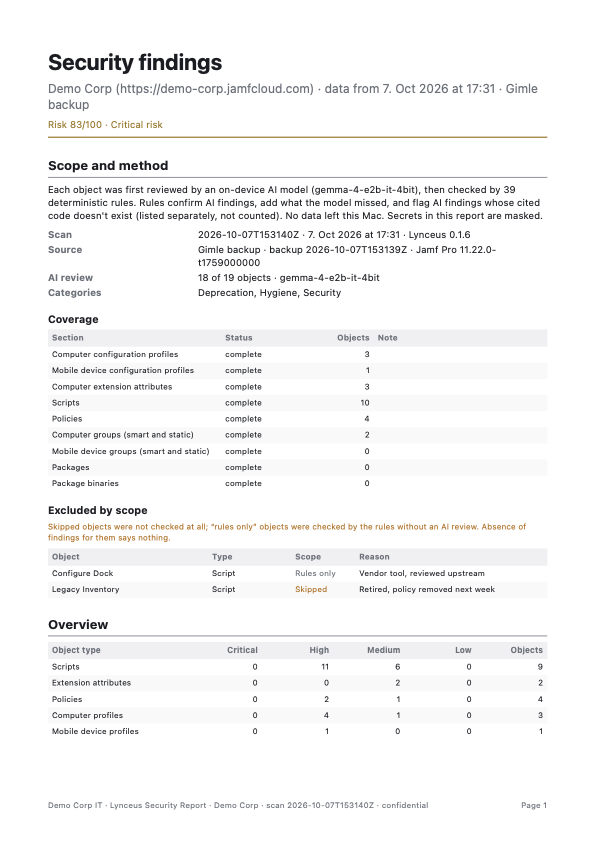
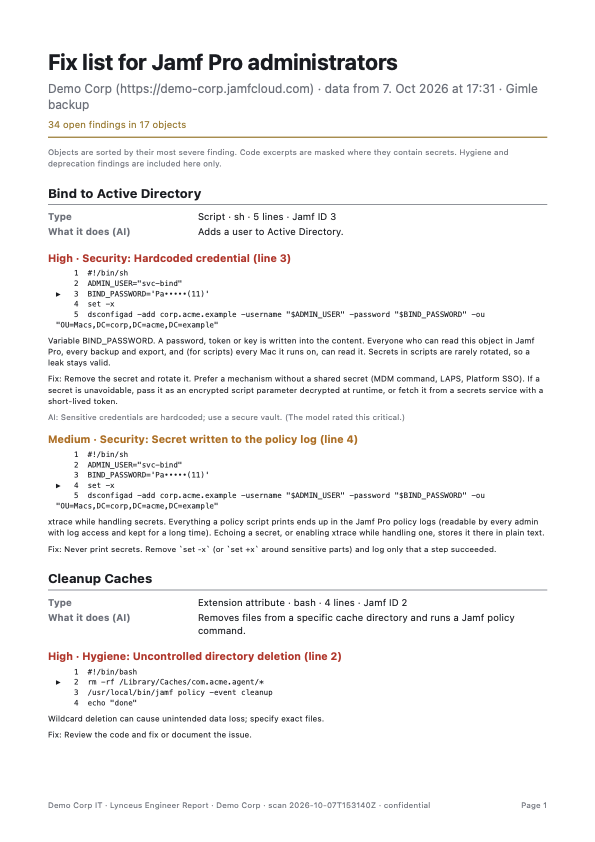
Every scan can be exported as three PDFs plus CSV and Markdown:
- Executive summary: risk grade, changes since the last scan, top risks in business terms (rule-backed findings only), and an optional analyst note written by the AI from the figures, labelled as such.
- Security report: scope and method, coverage per section, excluded objects, every finding with evidence, accepted risks.
- Engineer fix list: per object, every finding with the code in context, why it matters and how to fix it, including hygiene and deprecation findings.
Data on the Mac
~/Library/Application Support/Lynceus/History: scan history and triage decisions (secrets masked)…/ReviewCache: AI reviews, keyed by content, model and prompt version…/Snapshots: live snapshots in Gimle's format. These contain the raw objects, including any secrets in them, so protect the Mac accordingly
Logs & Troubleshooting
Lynceus logs to the unified log (subsystem com.spectrechen.lynceus) and to ~/Library/Logs/Lynceus/Lynceus.log (rotated at 10 MB, 5 files). It logs the version and memory at start, sources found, which model is used, model loading, every scanned object with result counts and duration, and Jamf requests during live scans. It never logs script content or secrets.
log stream --level info --predicate 'subsystem == "com.spectrechen.lynceus"'
log show --last 1h --info --predicate 'subsystem == "com.spectrechen.lynceus"'
If the AI doesn't load, the model category says why: no model found, model files not readable, or not enough free memory. With an external server, a long wait before the first answer token usually means the model is thinking (see AI Options).
What's Verified
Tested: 54 unit tests pass in 17 suites, including checks that reports don't leak secrets. Everything was tested in a demo environment, not against a production Jamf Pro. The AI review was checked against the real bundled model on demo scripts, and pausing and retrying when the AI fails was tested end to end with a local fake server.
Not verified: scans of a production Jamf Pro, a deployment through MDM, and how well the findings hold up on large, real-world script collections.